Installation & Getting Started
This guide covers installing BTick, launching the visualizer, configuring Docker Compose from scratch, and executing a verified first run.
Prerequisites
Operating System: Ubuntu 22.04 LTS (Jammy) or 24.04 LTS (Noble).
Deployment Options:
Choose the deployment option that best fits your development environment.
Deployment
Description
Access
Docker Web Application
Runs BTick in a containerized environment.
Access the interface through a web browser.
Native Linux Desktop
Runs BTick as a desktop application packaged as a Linux
.deb.Launch the installed desktop application.
Robot Stack (for live monitoring):
ROS 2 Humble, Iron, or Jazzy.
BehaviorTree.CPP v4.
Option A: Docker Compose Deployment
This option is recommended for users who want to run BTick in a containerized environment.
1. Creating the Docker Compose File
Create a dedicated directory and save the following docker-compose.yml:
mkdir -p ~/btick_deploy
cd ~/btick_deploy
nano docker-compose.yml
Paste the complete, verified configuration below:
# ==============================================================================
# BTick Behavior Tree & ROS 2 Monitor Docker Compose
# ==============================================================================
services:
  btick:
    image: sheriffathey/btick:latest
    container_name: btick
    network_mode: host
    restart: unless-stopped
    environment:
      - HTTP_PORT=${HTTP_PORT:-3000}
      - WS_PORT=${WS_PORT:-8080}
      - ZMQ_PORT=${ZMQ_PORT:-1667}
      - ZMQ_HOST=${ZMQ_HOST:-127.0.0.1}
      - ROS_DOMAIN_ID=${ROS_DOMAIN_ID:-0}
      - RMW_IMPLEMENTATION=${RMW_IMPLEMENTATION:-}
      - CYCLONEDDS_URI=${CYCLONEDDS_URI:-}
      - PYTHONUNBUFFERED=1

      # Automatic browser opening (set OPEN_BROWSER=false for headless robots)
      - OPEN_BROWSER=${OPEN_BROWSER:-true}
      - BROWSER=/usr/local/bin/xdg-open
      - DBUS_SESSION_BUS_ADDRESS=${DBUS_SESSION_BUS_ADDRESS:-}
      - XDG_RUNTIME_DIR=${XDG_RUNTIME_DIR:-}

    volumes:
      - /tmp:/tmp:ro
      - ${XDG_RUNTIME_DIR:-/run/user}:${XDG_RUNTIME_DIR:-/run/user}:ro
2. Configuration Breakdown
Docker Image
image: sheriffathey/btick:latest
Uses the BTick Docker image, which includes the web application and its communication bridges.
Network Configuration
network_mode: host
Uses the host network, allowing BTick to communicate with ROS 2 nodes and access services exposed on the host network. No Docker port mappings are required.
Endpoint Configuration
HTTP Web Interface: Open
http://localhost:3000on the host, orhttp://<robot-ip>:3000from another device. Configured throughHTTP_PORT.WebSocket Transport: The browser connects to the bridge through
ws://localhost:8080, orws://<robot-ip>:8080remotely. Configured throughWS_PORT.ZMQ: The bridge connects to the Groot2 publisher at
ZMQ_HOST:ZMQ_PORT. The defaults are127.0.0.1:1667.
ROS 2 Configuration
ROS_DOMAIN_ID(default:0): Must match the domain ID used by the ROS 2 nodes you want to monitor.RMW_IMPLEMENTATION: Optionally selects the ROS 2 middleware implementation, such asrmw_cyclonedds_cpporrmw_fastrtps_cpp. Leave empty to use the environment’s default.CYCLONEDDS_URI: Optionally provides the Cyclone DDS configuration URI when using Cyclone DDS.
Browser Configuration
OPEN_BROWSER(default:true): Controls whether BTick attempts to open a browser on startup. Set it tofalsefor headless robots or servers.BROWSER: Specifies the browser-launch command used by the container.DBUS_SESSION_BUS_ADDRESSandXDG_RUNTIME_DIR: Pass desktop-session settings used when launching a browser.
Volume Mounts
/tmp:/tmp:ro: Mounts the host’s/tmpdirectory as read-only.${XDG_RUNTIME_DIR:-/run/user}:${XDG_RUNTIME_DIR:-/run/user}:ro: Mounts the configured runtime directory as read-only for desktop-session integration.
3. Starting and Stopping the Container
Start BTick in detached mode:
cd ~/btick_deploy
docker compose up -d
Stop BTick:
docker compose down
View live bridge logs:
docker compose logs -f btick
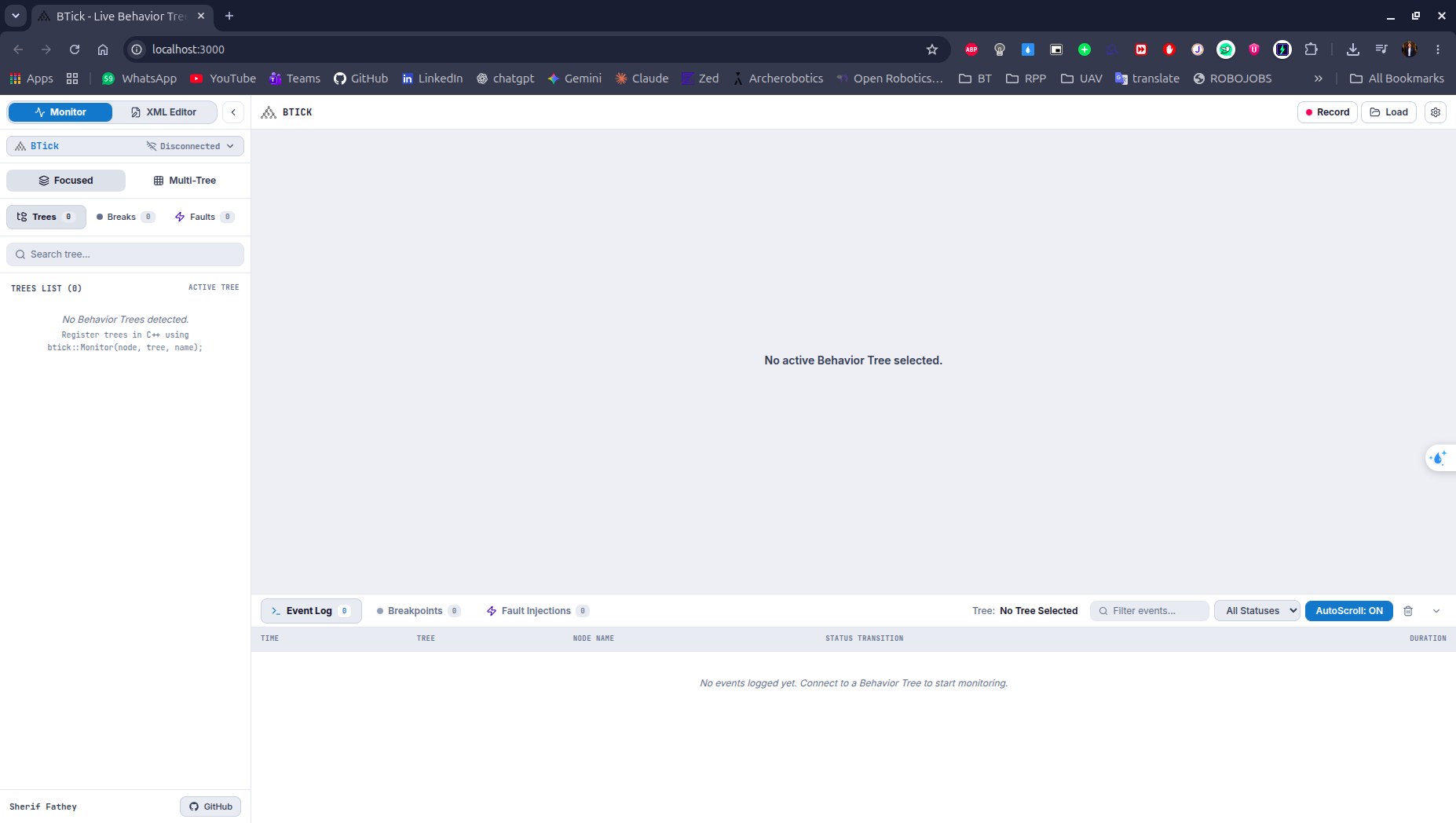
First Launch
Option B: Native Linux Desktop Package (.deb)
For native desktop execution without Docker:
Download the Package:
Open the latest BTick release. Under Assets, download the latest
.debpackage to your computer.You can also download the latest package from a terminal with:
wget "$(curl -s https://api.github.com/repos/SherifFathey/btick_app/releases/latest | grep "browser_download_url.*$(dpkg --print-architecture)\.deb" | cut -d '"' -f 4)"
Install via apt:
sudo apt update
sudo apt install ./btick_*.deb
Launch the Application:
btick
First Launch
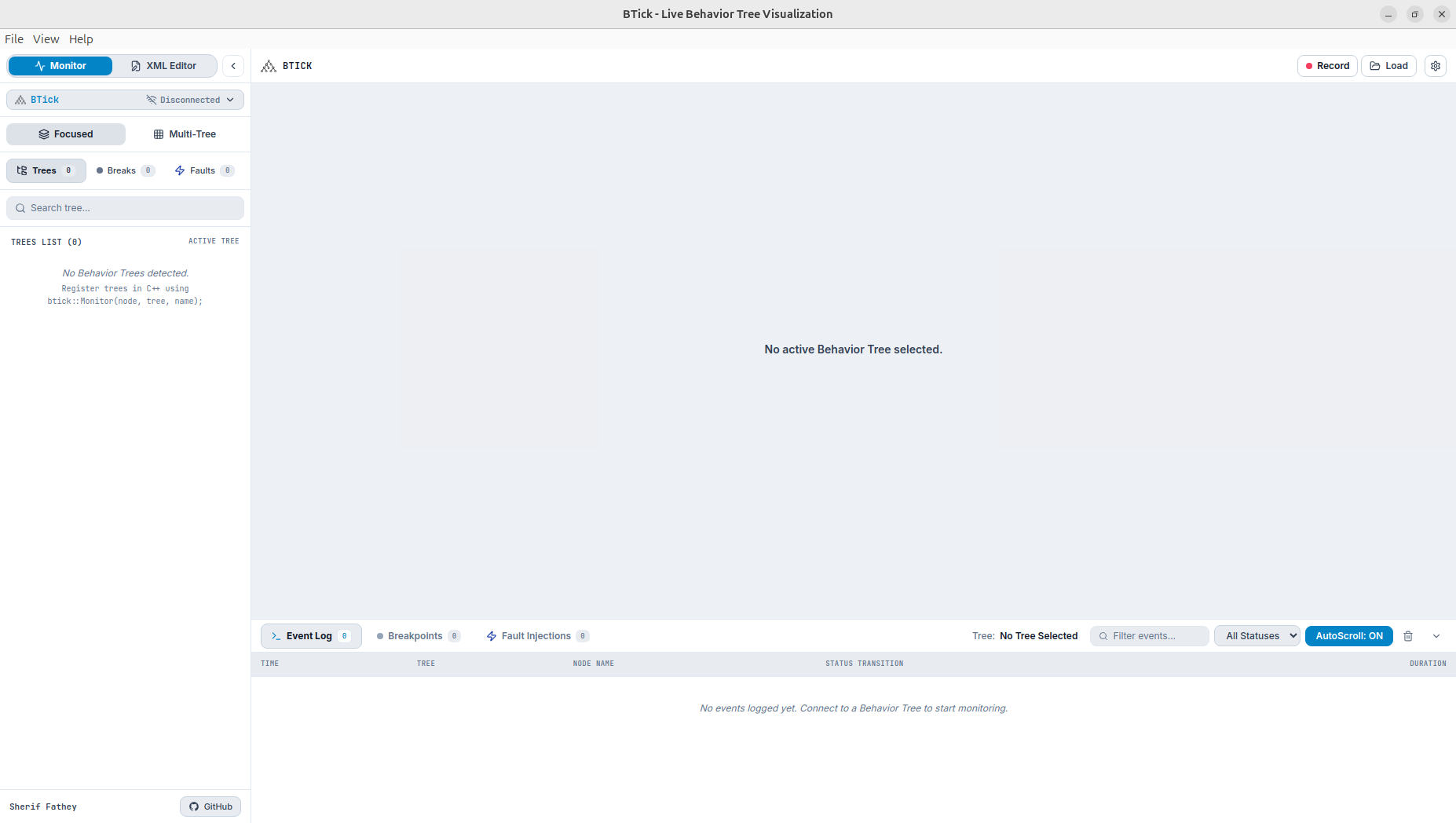
Connect BTick to a supported behavior tree source to start monitoring its execution.