Monitor User Guide
The BTick Monitor interface provides real-time visualization, telemetry, and interactive debugging for BehaviorTree.CPP applications. It enables operators and developers to observe behavior tree execution, inspect runtime blackboard variables, trace failures, and test recovery behavior.
1. Overview
Use the Monitor interface to:
Observe live node transitions and behavior tree execution in real time.
Inspect node metadata, execution durations, tick counts, and port bindings.
Open the Live Blackboard Watcher to monitor shared variables and modify values.
Debug trees interactively using breakpoints, forced statuses, and delay injection.
Trace execution errors using event logs and jump directly to failing nodes.
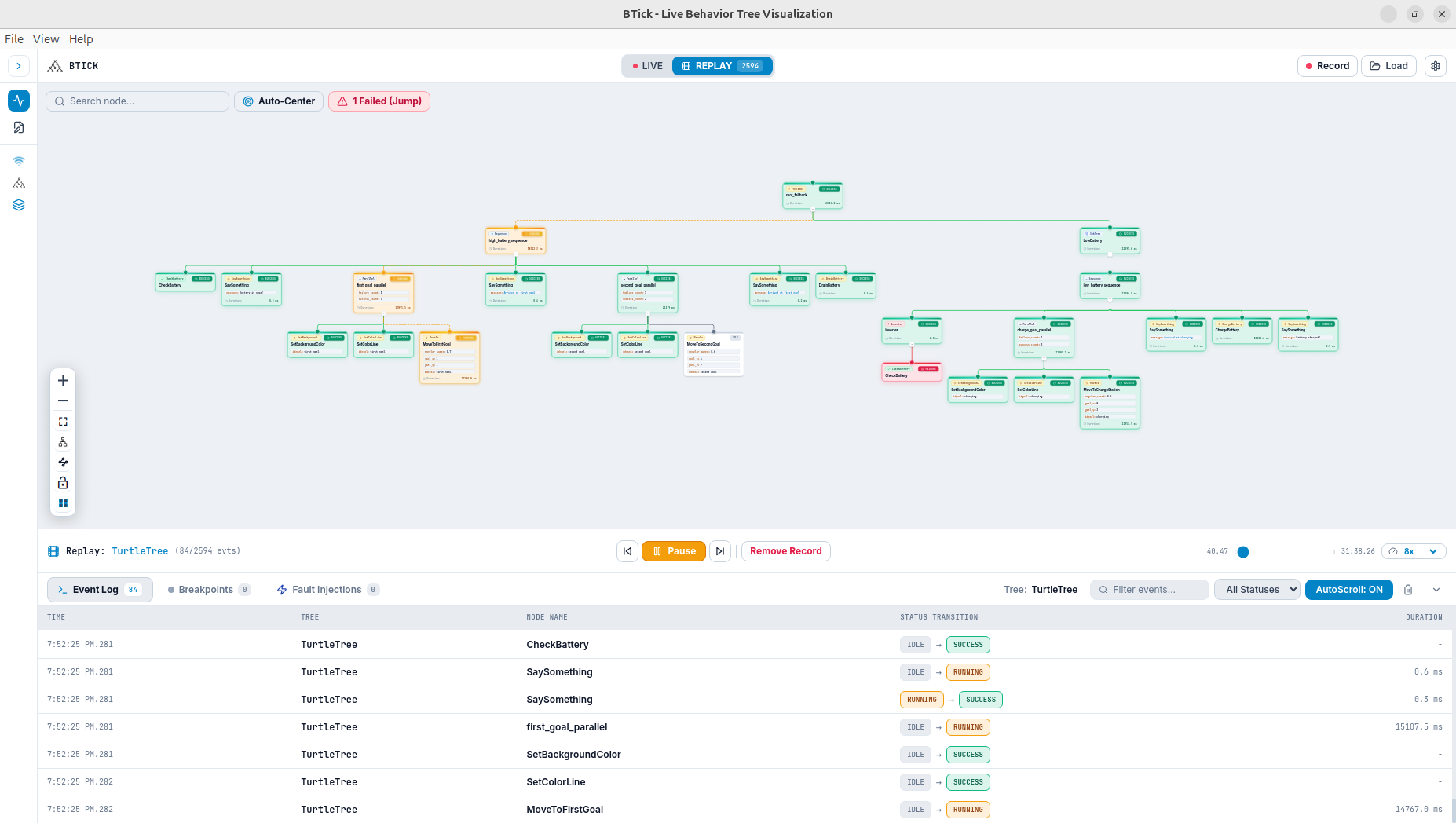
Record execution sessions to JSON files and replay them using a timeline scrubber.
2. Monitor Workspace
The Monitor workspace consists of the following primary interface areas:
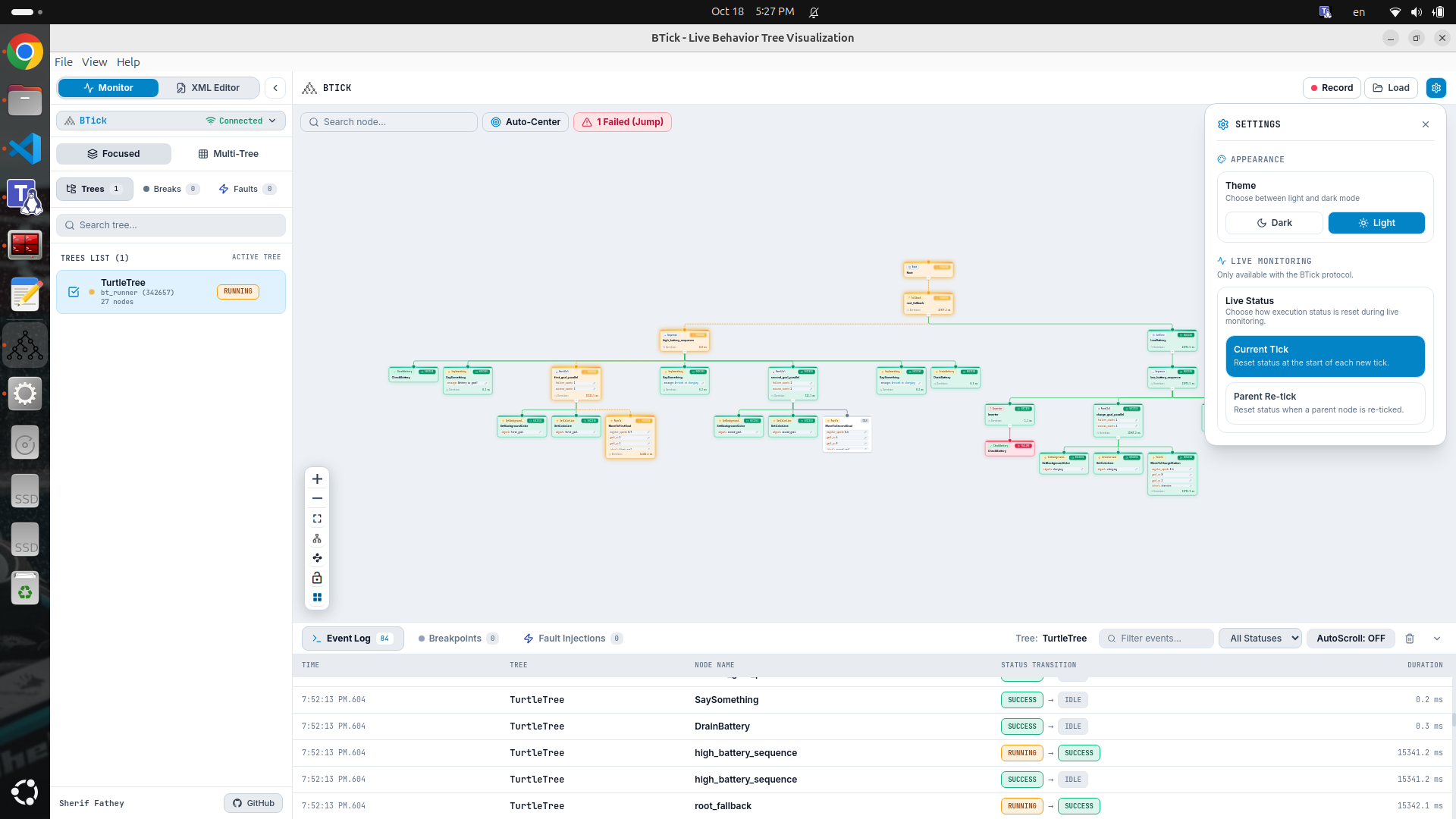
Header Bar: Displays the application branding, session recording controls (Record / Stop, Load), and the Settings menu (gear icon).
Left Sidebar:
Mode switcher (Monitor and XML Editor).
Connection and protocol selector (BTick, Groot2, Nav2).
View mode toggle (Focused (single-tree view) vs. Multi-Tree).
Navigation tabs (Trees, Breakpoints, Fault Injections).
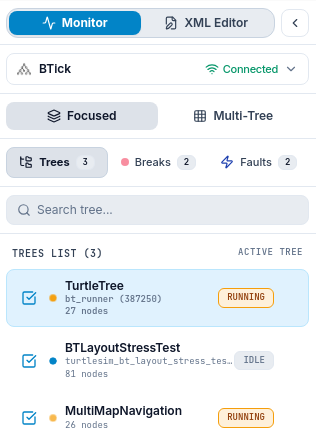
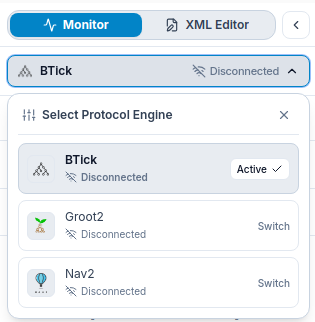
Behavior Tree Display Area: The main interactive viewing area rendering the behavior tree graph, hierarchical node connections, and live execution status colors.
Display Area Controls & Overlays:
Top Search & Controls Overlay: Includes the Search node input and Auto-Center control.
Bottom-Left Display Area Controls: Includes zoom, fit view, layout orientation, path style, display lock, and reset layout controls.
Breakpoint Banner: When execution pauses at a breakpoint, a top banner displays the paused node name and action buttons: Continue, Success, Failure, and Remove Breakpoint.

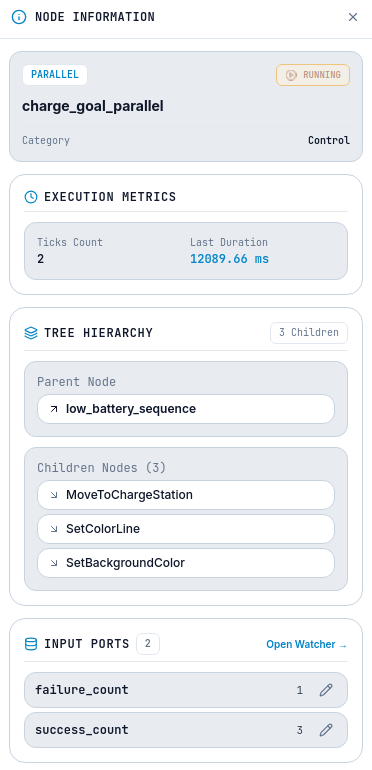
Node Details Panel (Right Drawer): Opens with the title Node Information when selecting a node in the display area. Shows node status, type, category, tick count, duration, runtime modifications, port bindings, and protocol-specific debugging panels.
Settings Drawer: Opened by clicking the gear icon (⚙) in the top-right header bar. Provides controls for configuring application theme (Appearance) and execution status reset modes (Live Status) under the BTick protocol.
Bottom Panel Drawer: An expandable bottom drawer with tabs for Event Log, Breakpoints, and Fault Injections.
3. Behavior Tree Display Area
Execution Status Colors
Nodes in the display area dynamically reflect execution states via colored borders and badges:
Status |
Color |
Operational Meaning |
|---|---|---|
|
Yellow | The node is currently executing. |
|
Green | The node completed execution successfully. |
|
Red | The node completed execution with a failure status. |
|
White | The node is not currently active. |
|
Previous Status Color | The node was skipped during execution. |
Live Status Reset Modes
When monitoring behavior tree execution under the BTick protocol, you can configure how node statuses are reset on the canvas between ticks:
Click the Settings (⚙) icon in the top-right header bar.
In the Settings drawer under Live Monitoring, locate the Live Status options.
Switch between Current Tick and Parent Re-tick:
Aspect |
Current Tick |
Parent Re-tick |
|---|---|---|
Reset Trigger |
Resets node statuses at the start of each new tick. |
Resets node status only when its parent node is re-ticked. |
Visual Behavior |
Nodes not evaluated during the active tick immediately return to |
Completed nodes retain their status ( |
Persistence |
Transient; displays only what executed in the latest cycle. |
Persistent; preserves recent branch context across multiple cycles. |
Best For |
High-frequency tick loops, reactive control trees, and identifying the exact real-time execution path without leftover visual state. |
Long-running sequences, parallel branches, and multi-step tasks where preserving completed steps provides better operational context. |
Note
Protocol Support: Customizing the Live Status reset mode is available exclusively with the BTick protocol. When using Groot2 or Nav2, execution status display adheres to the respective protocol’s native event stream.
4. Selecting Nodes and Inspecting Details
Click any node card in the behavior tree display area to open the Node Information panel on the right.
The panel displays:
Node Header & Category: Descriptive node name, registered type, and category (Action, Condition, Control, Decorator, SubTree).
Execution Telemetry: Cumulative tick count, and last execution duration in milliseconds.
Input, Output, and Inout Ports: Declared ports with their current values. Ports bound to blackboard keys appear with blue badges (e.g.,
goal: {target_pose}); literal values appear with amber badges.
Under the BTick integration, ports can be modified dynamically:
Click the edit pencil icon next to an input port.
Enter the new literal value or blackboard key binding (enclosed in curly braces, e.g.,
{new_goal}).Click the checkmark or press Enter to dispatch the update live to the running robot node.
Note
Live port editing is supported exclusively in the BTick integration.
5. Execution Logs and Failure Investigation
The expandable bottom drawer provides tools to inspect execution events and isolate failures.
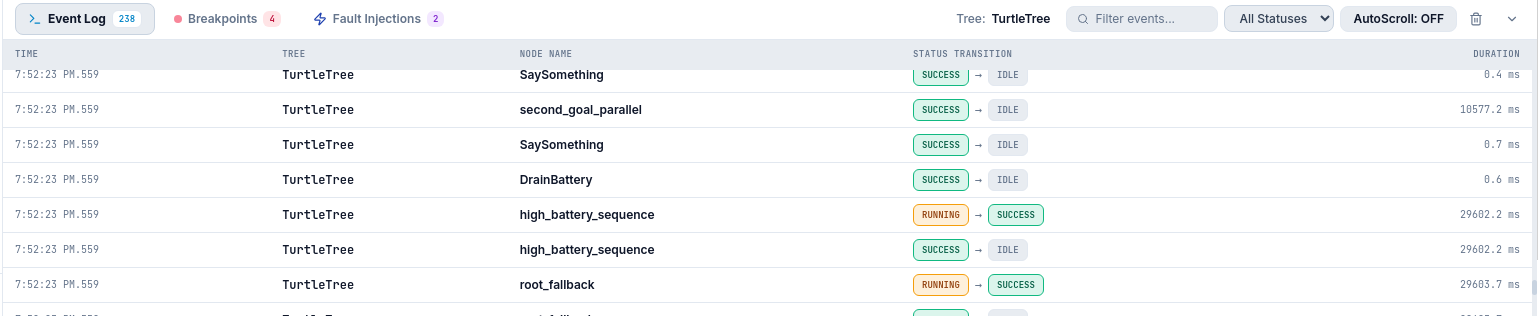
Event Log
Click the Event Log tab in the bottom panel drawer.
Inspect chronological transitions showing timestamp, tree name, node name, UID, status transition, and duration.
Filter Transitions: Use the Filter events… search field to filter by node or tree name, or filter by status using the dropdown (
ALL,RUNNING,SUCCESS,FAILURE,SKIPPED).AutoScroll: Click the AutoScroll button to toggle automatic scrolling on or off.
Display Area Synchronization: Click any row in the event log to select and center the corresponding node in the behavior tree display area.
Clear Log: Click the trash icon to clear the event log stream.
Investigating Failures
When a behavior tree encounters an error:
When any node returns
FAILURE, a Failed (Jump) button appears in the top controls overlay. Click it to cycle directly to each failed node in the display area.Filter the Event Log by
FAILUREto trace the sequence of events and identify which node triggered the recovery behavior.Check the failing node’s input ports and execution duration in the Node Information panel to determine whether the failure resulted from invalid parameters or subsystem timeouts.
6. Blackboard Inspection
The Live Blackboard Watcher allows operators to view and modify shared memory variables used across behavior tree nodes.
Opening the Blackboard Watcher
To open the watcher, click Open Watcher → in the Input Ports or Inout Ports section of the Node Information panel.
Viewing Blackboard Variables
Displays all variables currently in scope, their inferred types (
string,number,boolean,json), and current values.Lists reader and writer nodes associated with each blackboard key.
Use the search bar to filter variables by key or value.
Click Export to download the current blackboard snapshot as a JSON file.
7. Interactive Debugging
Interactive debugging controls are accessible via the Node Information panel, the node context menu (right-click on a node), the Breakpoints and Fault Injections drawer tabs, and the top execution banner.
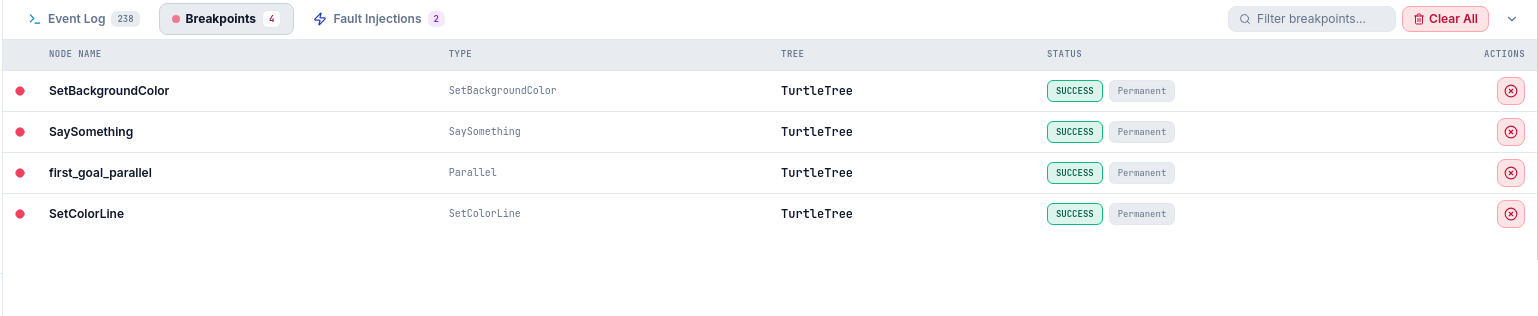
Breakpoints
Breakpoints pause tree execution before a designated node is ticked:
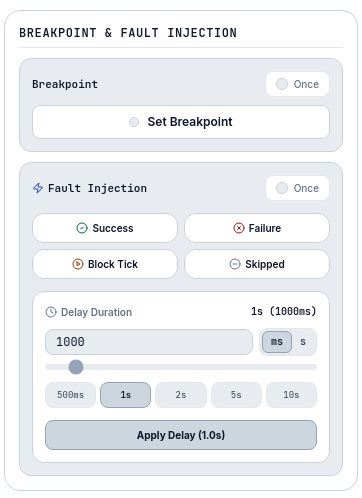
Right-click a node in the display area or open the Node Information panel.
To trigger only once, toggle the Once option.
Click Set Breakpoint. A red marker appears on the node card.
When execution reaches the node, execution halts. A floating banner appears showing Execution Paused: Breakpoint at [Node Name].
Use the banner actions to proceed:
Click Continue to resume normal execution.
Click Success to force the paused node to return
SUCCESS.Click Failure to force the paused node to return
FAILURE.Click Remove Breakpoint to clear the breakpoint and resume execution.
Forced Statuses and Delay Injection
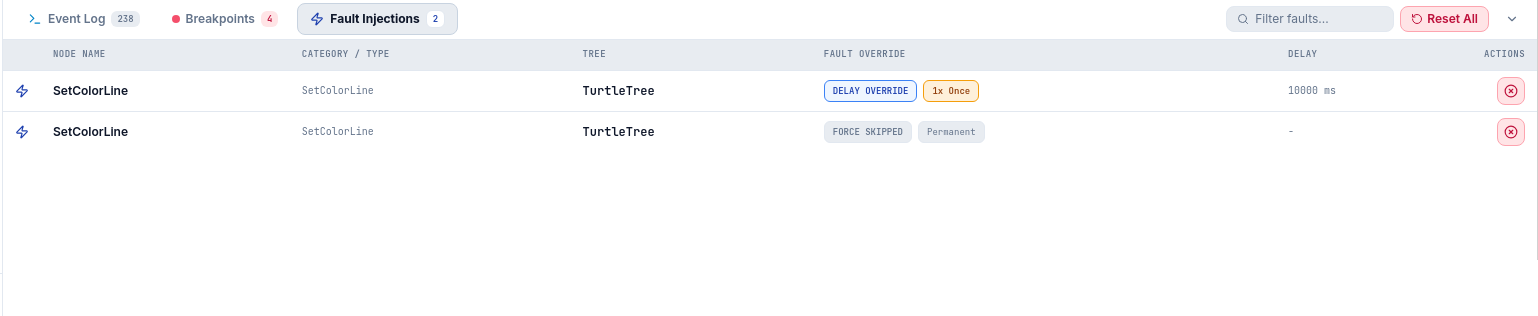
Test fallback logic and recovery behaviors dynamically:
Forced Status: In the debugging panel or node context menu, select:
Success: Forces the node to return
SUCCESSimmediately when ticked.Failure: Forces the node to return
FAILUREimmediately when ticked.Block Tick (BTick only): Blocks the ticking thread until cleared.
Skipped (BTick only): Forces the node to return
SKIPPED.
Once Toggle: Enable Once to apply the status override for a single tick only.
Delay Injection (BTick only): In the Node Information panel or context menu, specify a delay in milliseconds and click Apply Delay to inject artificial latency before the node executes.
Clear Overrides: Click Clear Fault Override to restore normal execution.
Integration Debugging Capabilities
BTick: Supports breakpoints, forced statuses (Success, Failure, Block Tick, Skipped), delay injection, and live port editing.
Groot2: Supports breakpoints and forced status overrides (Success and Failure). Delay injection, Block Tick, Skipped, and live port editing are unsupported.
Nav2: Passive monitoring only. Breakpoints, forced statuses, and delay injection are unsupported.
8. Session Recording and Replay
BTick includes full session recording and playback capabilities across all integrations.
Recording a Session
Click Record in the top header bar. The button changes to an active red Stop button.
Execute the robot test or mission. BTick records tree topologies, transition events, and blackboard updates.
Click Stop to end recording.
Click Save in the header bar to download the session JSON file to your local computer.
Replaying a Recorded Session
Click Load in the header bar and choose a recorded session JSON file.
The application switches to Replay Mode, displaying the Replay Control Bar at the bottom of the window:
Play / Pause: Start or pause timeline playback.
Timeline Scrubber: Drag the slider to seek directly to any timestamp in the session.
Step Forward / Step Backward: Click the skip icons to step through transition events one by one.
Playback Speed: Adjust the speed dropdown (options:
0.25x,0.5x,1x,2x,4x).Remove Record: Removes the loaded session and prompts for confirmation.
To switch between live monitoring and recorded replay, use the LIVE / REPLAY toggle in the header bar.
9. Integration Differences
Available capabilities depend on the active integration:
BTick provides full bidirectional monitoring and debugging, including live blackboard writes, execution-delay injection, runtime port editing, and configurable live status reset modes (Current Tick vs. Parent Re-tick).
Groot2 provides live tree visualization, breakpoint debugging, forced status overrides (Success/Failure), and read-only blackboard inspection .
Nav2 provides non-intrusive, passive telemetry by subscribing directly to Nav2 topics, tracking execution states and failures without remote debugging controls.
For a detailed feature-by-feature matrix, see Protocol Comparison.